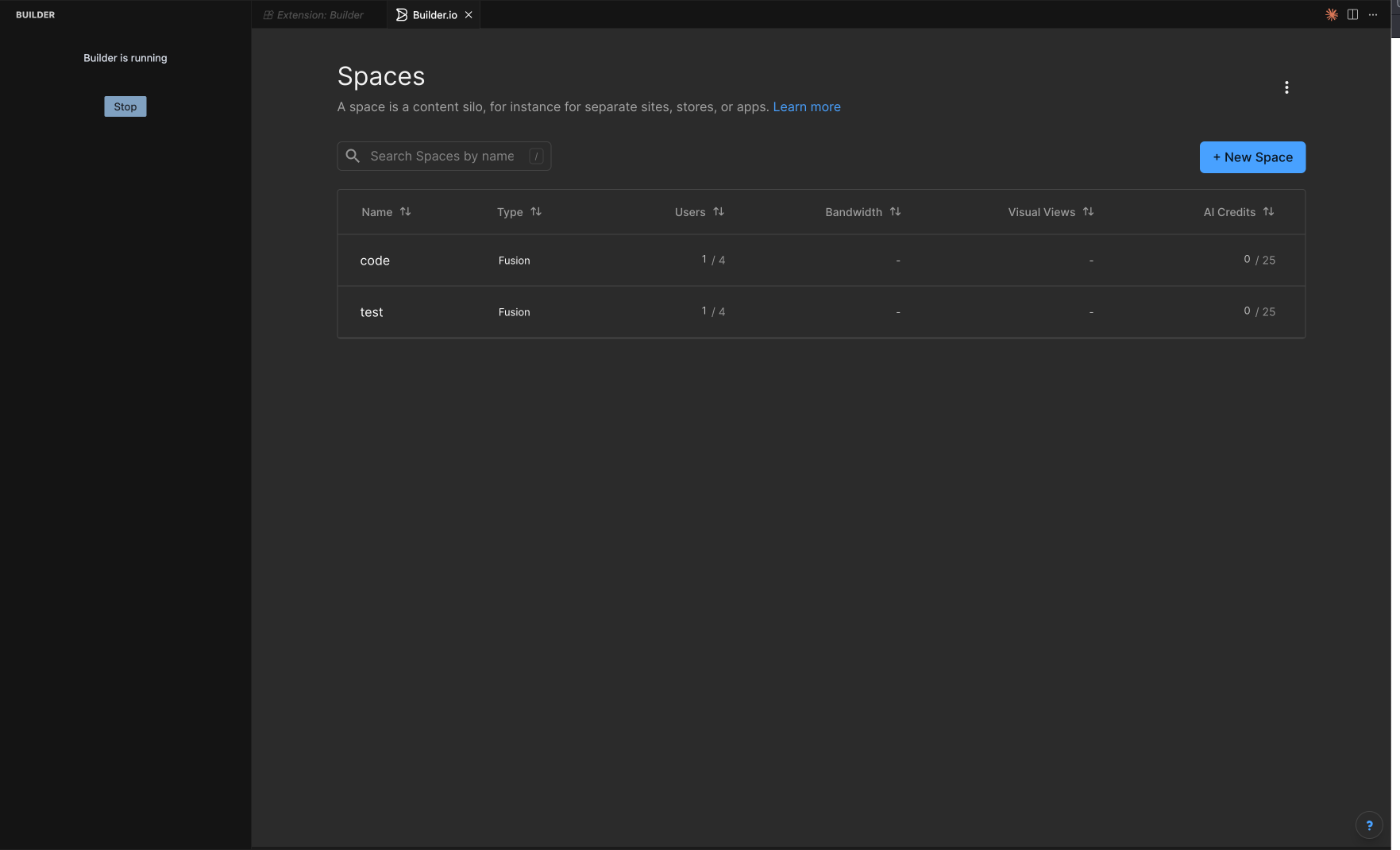
VScode plugin stuck on "Spaces" screen

I wanted to test out the builder plugin in cursor but I cannot get it to work. I installed the plugin, filled in all information, created an builder.io account, logged in.
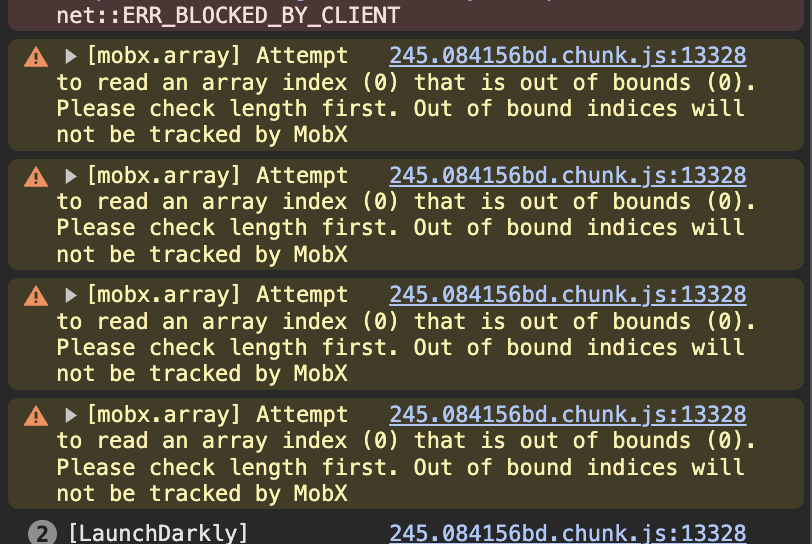
When I launch builder inside, it just gets stuck on the “Spaces” screen. Clicking a space does nothing, no actions I seem to take make any difference. Selecting “Open in a browser” give the same result. I do see something going on in the devtools console that might be relevant (see screenshot) when I click a Space in the list. If I reload the browser page, I am able to click on one of the spaces and go to another page (normal behavior I’m guessing - no warning in the devtools)

Detailed steps to reproduce the bug

Open builder.io extension in cursor

Fill out all necessary information (Open in a browser not checked)

Click “Launch”

New pane opens in the IDE on the “Spaces” page.

Click a space, nothing happens. No clear guidance on what is wrong or what to do next.

Screenshots or video link

Hi monkcode​,

Thank you for the detailed feedback — we really appreciate it. We’re currently looking into the issue with the plugin.

In the meantime, we recommend working directly in the Builder.io editor for the best experience.

Thanks again for your patience and for helping us improve!

Best regards,

Same here.

day1, it works.

day2 , when coms to Spaces pages. I did as same as day1 action, just loggin .

Here is my workflow:

  1. open figma files
  2. select webpage compoments , open tool bar in the bottom to call builder plugin
  3. click builder.io’s “smart export“ botton
  4. open vscode with an empty folder
  5. install builder.io’s vscode pulgin
  6. open builder plugin tab in vscode side bar
  7. paste smart export code into chat box, type “make this figma design to a.page “,enter
  8. done, AI works for me.

Day2.

  1. open builder plugin tab in vscode side bar
  2. login ,just space page.

Here is what I found:

After this workflow, I did’nt create or choose any space.

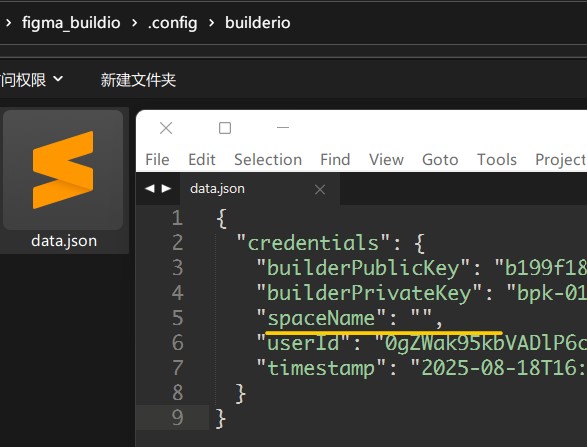
the config.json shows this. Is this a problem?

So that when accessing A the next day, the system redirects to the space page due to being unable to detect the space status?

Hi there,

Thank you for sharing the detailed information.

Regarding the VS Code extension:

  • The extension is not designed to allow switching between spaces, which is why there’s no visible option to log out or change spaces.

  • Please ensure you’re not running multiple Builder projects on the same port.

  • Try stopping the currently running project from the extension and restarting the correct one on a unique port.

  • If your project uses a .env file, double-check that the correct space settings or public API key are configured.

  • Just to clarify, projects are not tied to specific spaces—you can run any project in any space as long as the configuration (especially the API key) matches.
Thanks,